Call a navigation menu using a shortcode

Today I came across a weird situation: I needed to place a navigation menu in the content of a page. A shortcode was the obvious solution, but there doesn’t appear to be one built in for menus. I created this one very quickly:

function print_menu_shortcode($atts, $content = null) {
extract(shortcode_atts(array( 'name' => null, ), $atts));
return wp_nav_menu( array( 'menu' => $name, 'echo' => false ) );
}
add_shortcode('menu', 'print_menu_shortcode');

Place this in functions.php, then use [menu name="main-menu"] to call the menu in your content (replacing "main-menu" with your menu’s slug, of course).

You could adapt this to accept any of the other arguments available for wp_nav_menu(), but this served my purposes.

The semicolon;

A nerd’s tiny tale,

Staring at the pimple in the mirror,

He wondered if it was a biological error

Looking back at the things which were left out and stolen,

He finally realized his worst nightmare was that semicolon*

Well this line refers to the time when I spent 1/10th of the time timespan of a project debugging an exception. I later realized it was just a missing semicolon 😑🙈

Reference : https://www.npmjs.com/package/semicolon-troll

Moving from self-hosted to WordPress.com – My experience

A few months ago, I moved this site to WordPress.com. Sure, it means I might actually have a chance of blogging more because I don’t have to worry about any of the technical details of running my own WordPress install. But what else does it mean?

In this post, I’ll dive into some of the other reasons I’m enjoying WordPress.com.

Simplified Content

WordPress.com helped me simplify the overall structure of my site. Before I moved, I pared down my content in a big way. I consolidated two custom post types (portfolio and another one I used to manage review’s) into this site. Yes, I could have kept some of the custom post types, like the portfolio, but I  figured out I rarely used it anyway. I had actually made it just because I could 😛

Like many others when choosing between WordPress.com and WordPress.org I thought I need to be able to do anything and everything. But believe me, we don’t need it most of the time. That flexibility often comes with too much responsibility to handle. Sometimes, this even includes web developers like me who just want to write a personal blog.

The Plugins I Need

When I self-hosted my site, it seemed I was always trying this new plugin or that popular plugin. At WordPress.com, I have all I need and not much more. I don’t have to keep an eye out for what’s new and what the best plugin is that does “X” or “Y” because someone else does that for me.

What Backups?

Similarly to plugins, I also don’t have to worry about backups. On my self-hosted site, I used UPdraft Plus to back everything up. It wasn’t the perfect solution but worked for me in most cases, I also had a git repo I had maintained using Revisr. WordPress.com has me covered there.

Speed

I came from a droplet on Digital Ocean running an Easy Engine instance, I still use it for some projects. However, when you use WordPress.com, you know your site and the architecture behind it will be as fast as possible. A lot of people take this for granted when they sign up for a WordPress.com account.


More Readers

When you write a blog, sometimes you feel like you’re on an island. I’ve not been a regular blogger,  but I know, the posts where you get comments or a stats spike are few and far between. Building an audience takes time, but with WordPress.com I have a better shot at a bigger, more passionate audience. Things like subscriptionslikessharing and more help with all that. We’ll see how it goes.

The Reader

I was a vivid user of Google Reader. Unfortunately, I am no more active. I liked it a lot, but it wasn’t perfect. The WordPress.com Reader isn’t either. I miss being able to group RSS subscriptions with tags, but I like its simplicity. It keeps me close to blogging and helps me discover great content – those are the important things. I’ve also been using it more on my cell phone for jotting down points before I actually sit down to write a detailed post.

Conclusion

Have you built something interesting with WordPress?

It is very easy to create a WordPress website. Considering that WordPress is no longer just blogging tool, it has grown into a very powerful Content Management System. You can use WordPress to build a different type of websites very easily.

Thousands of free and premium plugins are available to turn WordPress from simple blog to powerful professional website. And this is what makes the WordPress eco-system way more interesting. You think of it, and there is a way to build it with WordPress.

What have you built with WordPress?

We would like to learn more if you have built an interesting website or an app with WordPress, or a plugin/ theme or might be even a SAAS platform. We would like to know more about your journey.

Come talk to us!  The Pune Knowledge Exchange group is organising a Meetup to showcase your awesome website, blog, product to other WordPressers in Pune. We are having a Meetup discussing interesting products built on the top of WordPress.
More about it here

Why should you be there?

We understand that building a product is not as easy as it is said. But we also understand that just building great products does not make it popular. It’s the community that adopts it.

Talking about your WordPress product at the Meetup gives you a window into your users perspective. You can get first-hand reviews of your product. Suggestions regarding improving it. And who knows you might gain some customers too.

What are we interested in listening?

Actually everything about your journey building it. I personally would be more eager to listen to how you built it. Why have you built it? What problems does your product solve? Did you face any difficulties when doing it? How did you overcome them? Do you have suggestions for other fellow developers/users or someone who is looking forward to building something similar?

See you there!

WordPress Lightning Showoff

1/13, 2:00 PM: Have a great website or product around WordPress that you’d like to show off?In 10 minutes, showcase your awesome website, blog, product to other WordPressers in Pune.5 more minutes to


Installing WP-CLI on shared hosting

WordPress Command-Line Utility, or WP-CLI for short, is an advanced utility for power users who wish to rapidly manage and deploy their WordPress sites using bash/SSH.

Are you managing multiple WordPress websites

Have ever logged in to your client’s site just for the sake of Core WordPress Update or Plugin/Theme update?

Let us assume WordPress has released a new update and you have to update all themes and plugins of 10 different WordPress websites, every time you’ve to log in to the dashboard go to the updates page and select updates manually.

the above process is quite time-consuming, So in order to manage multiple WordPress websites in a quick way you can use WP-CLI

What is WP-CLI?

WP-CLI is Command Line interface based WordPress site management tool used to manage WordPress websites via SSH.

Using WP-CLI you can easily manage your websites without logging in, no need to remember your WordPress Login credentials. Just log in to your server via SSH and manage your WordPress installation quickly.

Why WP-CLI?

  • Serious Time Saver: No need to wait for the page to load, No need to remember site passwords, You can just enter few commands and your work will be done in few seconds as simple as that.
  • Supported & used by top Hosting Providers: The Overall WP-CLI project is backed by Hosting Giants like BlueHost, Automattic, DreamHost, WPEngine & SiteGround. BlueHost has confirmed that they are using WP-CLI to upgrade more than 2 Million websites. According to a report out of 2 million websites, 99% of websites were upgraded successfully.
  • Easy to use: If too many options on GUI confuses you then WP-CLI is for you. As it is CLI based tool there is no huge list of drop down links or tons of buttons which helps you to navigate you from one page to other. Command line interface is pretty simple , Enter a correct command it executes properly and gives a output.
  • No Passwords: Yes no need to remember login username and password for every website you manage. Just login to your server via SSH and let WP-CLI handle rest of the things. using WP-CLI you can handle each WordPress installation hosted on your server.
  • Love for Terminal : If the geek inside you loves working with Dark terminal window then WP-CLI is for you.

Basic Requirements of WP-CLI

  • SSH Access

Before moving forward make sure your hosting provider has enabled SSH access for your account. If not then request your hosting provider to enable SSH for your account.

Installing WP-CLI via SSH

1. Login to server via SSH

Enter your username and password to access server via SSH.

After successful login enter “pwd” command to know your current directory.
Output should be /home/username
[username@server ~]$ pwd
/home/username

3. Download Setup file

To install WP-CLI you must download setup file to our directory.

WP-CLI is open source project maintained by open source community

Latest version of wp-cli file is available as wp-cli.phar on WP-CLI GitHub repository.

Now you have to Download wp-cli.phar file to our current directory.
To download that file you can use “curl” command.

(you can also use “wget” command to download files from remote server)
curl -O https://raw.githubusercontent.com/wp-cli/builds/gh-pages/phar/wp-cli.phar
hit enter key to execute command.

4. Making file Executable

In Linux operating system you can’t execute a file directly like the way you execute files in Windows, here you have to set permission for that particular file and make it executable so that users can use execute those files and accomplish their task

Now you have to set permissions to wp-cli.phar file and make it executable.
chmod +x wp-cli.phar
chmod +x is a Unix system call which may change the access permissions to file system objects and makes that file executable.

5. Testing Execution

After assigning permissions lets check whether the file executes properly.

If the command doesn’t execute properly then you should delete current .phar file and Download a new file.

To Check whether file is Executing properly, Run “php wp-cli.phar –info” command to get PHP version details and WP-CLI version details.
php wp-cli.phar --info
(version details will be displayed in following manner)
patilswapnilv@swapnil-desk:~$ php wp-cli.phar --info
PHP binary: /opt/cpanel/ea-php56/root/usr/bin/php.cagefs
PHP version: 7.0
php.ini used: /opt/cpanel/ea-php56/root/etc/php.ini
WP-CLI root dir: phar://wp-cli.phar
WP-CLI vendor dir: phar://wp-cli.phar/vendor
WP_CLI phar path: /home/patilswapnilv
WP-CLI packages dir:
WP-CLI global config:
WP-CLI project config:
WP-CLI version: 1.4.1
patilswapnilv@swapnil-desk:~$

6. Setting up Alias for commands

Now in order to execute WP-CLI commands you have to always mention “php wp-cli.phar” before command.

Like “php wp-cli.phar plugin list
(this command will display all the plugins installed in current WordPress website)

Syntax is too long, you can trim it and make it more user-friendly by assigning alias in .bashrc file or move wp-cli.phar file to usr/bin/wp folder.

This is final step of WP-CLI installation which can be executed in two ways

  • .bashrc file method
  • moving .phar file to bin folder

6.1 Adding alias to .bashrc file

Adding Bash alias for WP-CLI (.bashrc file method)

Using alias you can trim long code “php wp-cli.phar” to a short one “wp“.
Basically alias helps us to create a short version of long commands

In .bashrc file you have to create an alias and assign “php wp-cli.phar” to “wp” so that whenever you run a command in short form in terminal but in backend it will run as long format.

Example
wp plugin list” will run as “php wp-cli.phar plugin list

Run alias command to assign alias
alias wp='~/wp-cli.phar'
This command tells the system that every time when users enters “wp” consider it as “wp-cli.phar“, an executable file which is present in home directory.
echo "alias wp='~/wp-cli.phar'" >> .bashrc
using echo you can output the required statement then “>>” will append it to .bashrc file
source .bashrc
here you use source command to update bash initialization.

6.2 Moving WP-CLI.Phar to Bin folder

In shared hosting user don’t have root level permission to move file from home directory to system folders or edit system level file that is why use .bashrc file editing method.

If you are trying to install WP-CLI on Virtual Private Server or Dedicated server then you can move wp-cli.phar file to /usr/bin/wp folder
mv wp-cli.phar /usr/local/bin/wp

or

sudo mv wp-cli.phar /usr/local/bin/wp
This will move .phar file to bin folder and help us to use WP-CLI just by typing “wp“.

Test WP-CLI Commands

If you have completed all the above steps then run any WP-CLI command to check whether it is working properly.

Run “wp plugin list” command to check installed plugin status and plugin version.
patilswapnilv@swapnil-desk:~$ wp plugin list
+-------------------------+----------+--------+---------+
| name | status | update | version |
+-------------------------+----------+--------+---------+
| akismet | active | none | 4.0.1 |
| jetpack | active | none | 5.5.1 |
| syntaxhighlighter | active | none | 3.2.1 |
| wordpress-seo | active | none | 5.8 |
+-------------------------+----------+--------+---------+
patilswapnilv@swapnil-desk:~$

If you can see similar output then WP-CLI is working perfectly.

Hope you’ve understood how WP-CLI is installed on shared hosting servers. If you are facing any difficulty while installing WP-CLI let me know in comments below.

This is a basic tutorial on WP-CLI installation. Now you’ve learned how WP-CLI makes WordPress site management easy. There are few hosting companies which provides WP-CLI by default for every WordPress installation. You can find list of Hosting providers who are supporting WP-CLI project.

Using WP-CLI you can install WordPress, install Themes, install Plugin, Comment Moderation, Write Posts, Add users etc. For every process there is a CLI command mentioned in WP-CLI commands cheat sheet.

WP-CLI is maintained by open source community and new commands are added with every new release.

For more info about WP-CLI Project you can visit WP-CLI.org

How to submit plugin to WordPress plugin repository

So you made an interesting WordPress plugin, and you want that to be available for others to use. Though GitHub is really nice to share code, when it comes to WordPress, nothing beats the WordPress.org plugin and theme repository.

Why Publish Your WordPress Plugin?

The reasons people publish plugins in the WordPress Plugin Directory are obviously varied. A couple of examples are explained below:

  • You see a need for functionality that doesn’t exist in a plugin in the directory
  • You see a market opportunity
  • You want to build a community around your plugin
  • Your favorite plugin doesn’t offer additional functionality that you want
  • You’re frustrated by how much some plugins charge for extra extensions and you think you could build those features at a lower cost
  • You want to simplify functionality in a way that doesn’t exist
  • You want to contribute to the WordPress Plugin Directory in order to be a part of the community

Today, I am trying to explain how you can submit your plugin/s to the WordPress.org repository.

The plugin Submission process:

I am breaking down the process into smaller steps for ease;

The Guidelines.

Make sure you read the guidelines before creating and submitting your plugin to the repository. Make sure that your plugin is in compliance with all the rules. Some of the rules include:

  • Your plugin must be GLP compatible
  • Requiring user consent before storing user information
  • Not spamming users
  • Not including obfuscated code
  • Not doing anything that is illegal or morally offensive
  • Not embedding external link in the public site

Check the plugin name on the WordPress Directory

This is a simple step to decide the name for your plugin before you start. Doing this will let you know if that name is already taken. Just like usernames, you might not get what you expected.

Go to https://wordpress.org/plugins/ and enter your desired plugin name into the “Search plugin” search box. If you find no plugin for the name you used, there’s still a chance that a plugin has been submitted under that name and the user hasn’t submitted their first subversion commit, so don’t get too excited. Stay positive 🙂

You will want to submit the plugin as soon as possible in order to make sure that you get the name. If the plugin name already exists, you will need to brainstorm to think of a new one.

Create a plugin that works

Isn’t this so obvious? Make sure you plugin does exactly what you mention in the Readme. I create several plugins using the WordPress Plugin BoilerPlate. It saves a lot of time and has a perfect structure. But this is a choice and not a necessity. You are free to use whatever structure you find comfortable working with, as far as it follows the guidelines.

After you have made the plugin test it various times, in different environments if possible. Test all the functionalities so everything works exactly as you want it to.

Validate the Readme file.

The readme file plays an important role since it is used to populate the plugins page in the WordPress directory. If you want to make sure your plugin stands out here is an interesting article which talks about it in more detail.

To give you a general overview, you should enter in your plugin name, contributors (WordPress author IDs), donate link, tags, the WordPress version that is required and the WordPress version the plugin has been tested on, license (it must be GPL) and a short description of your plugin. For the tags, I would suggest choosing tags based on those listed in a competing plugin and popular tags that are relevant to your plugin. You can find tags from competing plugins by looking at their directory page and scrolling to the bottom of their page or by checking out theirreadme.txt file.

After adding that information, you should add the main description, installation instructions frequently asked questions and screenshots of your plugin. Make sure to include the screenshots, banner, and icon in your plugin’s assets directory. The more screenshots the better. Once you’re happy with your readme file, run it through the ReadMe Validator.

Submit your plugin for Review

Once you have completed all the above, you can log in to WordPress.org and add your plugin for review, by uploading your plugin at https://wordpress.org/plugins/add/

Add your plugin name as well as a description of your plugin. For the plugin URL, you need to compress your plugin files and upload your plugin.zip file to your website or to a website that you have access to. You should be able to upload the compressed file to Dropbox or Google Drive and add a public link to the plugin zip file.

Wait for approval 🙂

During the review, in some cases, the plugin review team may suggest some improvements to your plugin. Once the review is done, you should receive an email from WordPress.org regarding the approval. Congrats! You may now have that little dance you were waiting for 😛

The email will also contain the URL for your plugin page on WordPress.org, A SVN URL to upload your plugin files.

This command adds all of your central WordPress Subversion repository’s files into your local repository. An important note, make sure to replace  https://plugins.svn.wordpress.org/your-plugin-name. with the URL that is provided in your plugin approval email; You SVN URL will also be in the similar format of https://plugins.svn.wordpress.org/your-plugin-name. And, replace your-plugin-name at the end of the command with what you would like to name the directory.

You’ll get a response asking the following:

(R)eject, accept (t)emporarily or accept (p)ermanently? 

Type in t or p and hit Enter. Then, you’ll receive the message below. This indicates that the your-plugin-name directory was created on your computer and the tags, assets, trunk, and branches directories were added within the your-plugin-name Subversion repository directory.

Place all of your plugin files in the trunk directory. Now that you have your plugin files in the trunk directory, you need to add those files to your Subversion repository so that they can be tracked. You can do this by running the terminal command below.

svn2

You then need to push the changes made to your local repository to the central WordPress repository by running the following command in your terminal window.

svn-ci

You’ll need to enter your computer’s logged in username and password.

Then, you will be asked for your WordPress username and password.

Once those are credentials are provided, your plugin’s files will be transferred to the WordPress central repository. A Transmitting File Data message will be displayed and when complete, a Committed revision message will be displayed.

transmitting

DONE! You should get an email from WordPress explaining the new commit. Now, you may go and check your plugin URL on WordPress.org to see the changes.

Your plugin is now available for the public to download and use. But there are some improvements you can make to help users know your plugin a little better.

If you have not added images for banner and screenshots etc in the /assets directory already you won’t see them on your plugin page. Now add them and run the following command.assest*

Now, you need to commit the change to the central repository.

adding-assets


Check out your WordPress Plugin Directory page now and you should see images.

If you are developing your plugin on multiple computers or with multiple contributors, make sure to run the update command (visible below) before committing any changes. This pulls the changes that exist in the central WordPress repository into your local plugin repository.

update

Question?

Please feel free to get in touch using this contact form if you have any question regarding this, which I may have missed adding here.

References:
https://developer.wordpress.org/plugins/wordpress-org/
https://developer.wordpress.org/plugins/wordpress-org/how-your-readme-txt-works/
https://make.wordpress.org/plugins/2012/06/09/the-plugins-directory-and-readme-txt-files/
https://www.sitepoint.com/create-awesome-wordpress-org-page-plugin/
https://wordpress.org/plugins/developers/add/
https://wppb.me/
https://github.com/DevinVinson/WordPress-Plugin-Boilerplate
https://www.slushman.com/guide-using-wordpress-plugin-boilerplate/


Getting started with GST & WooCommerce

GST was introduced on 1st July 2017 in India. With this, marketers/ shopkeepers/ businessmen are expected to generate GST receipts/ invoices for clients. With that, we have one of India’s biggest monetary reforms. One of the primary motives for this is that it eliminates the cascading tax impact, making the lives of businessmen and investors less complicated and one of the evaluations being that India wasn’t prepared (technically), yet, for this sort of huge change.

Utilization of the WordPress+WooCommerce combo is at huge and loads of marketers use this aggregate for e-trade across the globe. With GST in India — at the time of writing this article, there’s no documented solution for GST implementation in WooCommerce. How will we understand?

Now, like any other person using WordPress with WooCommerce, I looked for a solution in the form of a plugin. I did just that. After spending some time searching, I realized that there is no documented solution available at the moment. Outside of the WordPress context, there are a lot of other software’s, across various domains, some of them are yet to be updated to handle this in India. Surprisingly, my search for a solution for GST in WordPress availed no perfect results.

Today, I will try to explain how to do the most basic setup for GST in India on WooCommerce in WordPress. Please note, that I’m stressing on basic. It may not cover all your expectations, but it will keep you in compliance with GST and you will not face losses because you couldn’t charge GST, at least. And yes, you do not need to install an additional plugin while using this solution. Also, there are more advanced, automated methods to do this, in case your needs are larger, or more complex, buts lets discuss that at the end of the post.

This method of setting up GST in WooCommerce would help you if you’re one of these people:

  • Don’t wish to change the prices of all the products in their WooCommerce store to include GST.
  • Are looking for a quick-fix implementation of GST and IGST in their WooCommerce store.
  • Wish to just charge GST for Indian customers; but not customers abroad.

Before we begin, here’s a glance at what we will achieve by the end of this article:

  1. GST/IGST will be calculated automatically during checkout
  2. GST/IGST will be shown on the invoice
  3. How to add GSTIN number to the invoice

A lot of things are easier when explained using a scenario. So, let us take an example scenario:
Let us assume, the client has a couple of brick-and-mortar apparel stores in Maharashtra spread across multiple cities and their e-commerce website has 200+ products.  They ship products pan-India. This brings GST (which is CGST+SGST) and IGST (Integrated GST) into the picture. The client also ships their products abroad.

Let’s begin. Stepwise:

    1. Login to WordPress and head over to WooCommerce > Settings
      wordpress-gst-india-woocomerce-settings
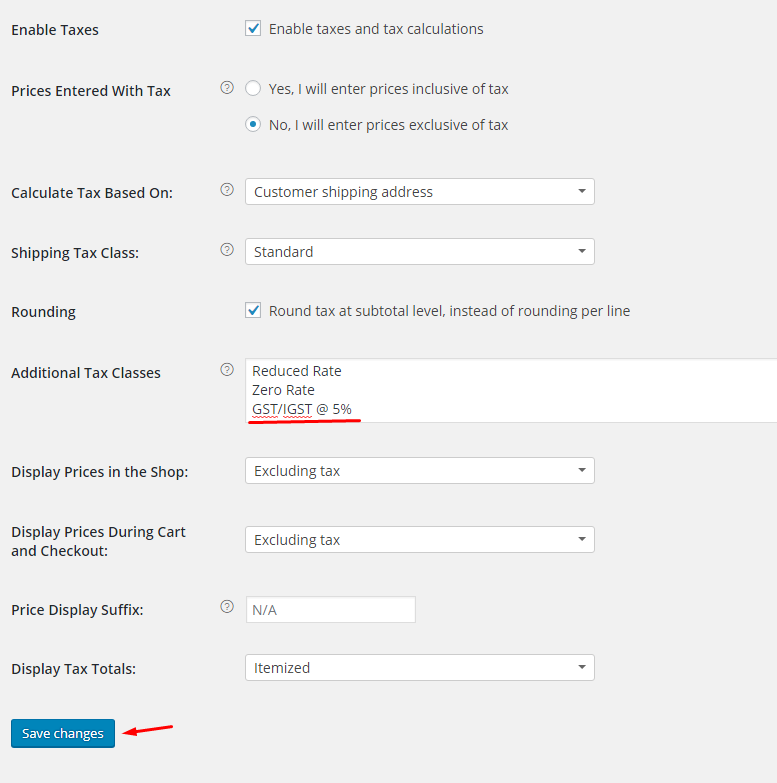
    2. Visit the Tax tab in once you’re there. And set the following settings as shown in the image
      woocommerce-gst-india-tax-tab
      Here, if you wish to show prices inclusive of GST during checkout, select ‘Including Tax’ in the ‘Display Prices During Cart and Checkout’ option

    3. Now, head over to Standard Rates; link to which is right under the Tax tab
      standard-rate-woocommerce-tax
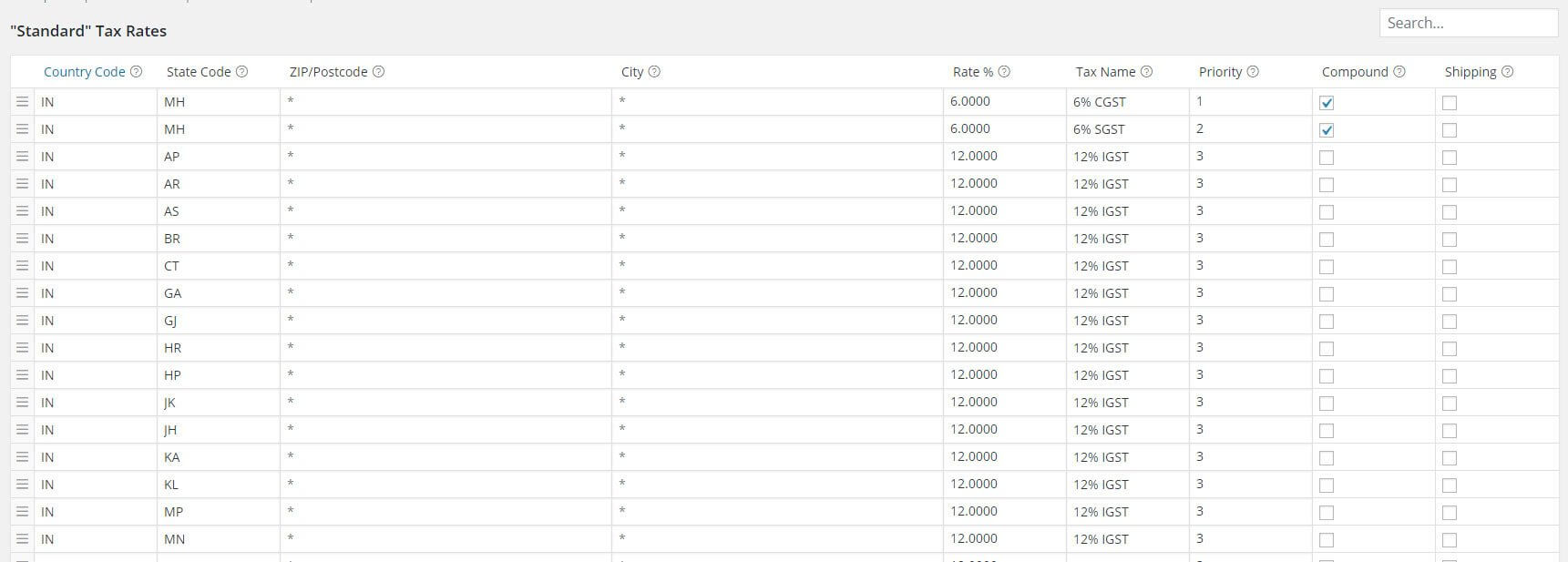
    4. Download this file (gst_woocommerce_tax_rates.csv) and upload it using the ‘Import CSV’ option. It contains all the state codes and the rates considering Maharashtra as the shop location for Apparels over Rs. 1,000 which is 12% for GST (CGST+SGST) and IGST; so, modify the CSV file accordingly and then upload. Considering the various possibilities, I’ll leave that to you.
      Please cross-check the tax rates yourself, to be sure, This is an import file I used from the internet, though most of it looks fine to me, the rates may vary. Once done, you’ll see that all the tax rates are imported.

      gst-tax-rates-imported-woocommerce.jpg

    5. Finally, you need to display your GSTIN number on your invoice.
      While the GST setup didn’t require a plugin in our GST setup guide, to display your GSTIN number on the invoices, you’re going to need to install a free plugin: WooCommerce PDF Invoices & Packing SlipsRemember, you need to uninstall any other PDF invoice generating plugin for this to work.Apart from helping you to add the GSTIN number to your invoice, it will also help you to generate, print and send PDF invoices and packing slips (and much more which can be read here) — which is great, isn’t it! Once you have installed the plugin, visit the plugin’s settings page and fill in all the necessary information.Next, simply follow the screenshots:
  1. Visit the Template tab in the settings. (You’ll find it under WooCommerce > PDF Invoices)

add-gstin-woocommerce-1

2. Scroll down, till you see the field with ‘Footer Terms & Condition etc’. In the text field, simply type ‘Our GSTIN is: ’

add-gstin-woocommerce-2

You’re set! 

That’s all. Congrats, your e-commerce shop using WooCommerce in WordPress is set for GST in India. Well, a basic setup, but it’s got you covered for now. If you have multiple tax slabs applicable, continue reading.

Depending on your template, your customers will see the results during checkout.

If your products have multiple GST/IGST slabs applicable basis the price, follow these steps:

The steps mentioned below are for clothing items, wherein if price >1000, 12% GST/IGST is applicable and if price < 1000, then 5% GST/IGST; you can adapt it to your rates. Click on the links to view the screenshots:

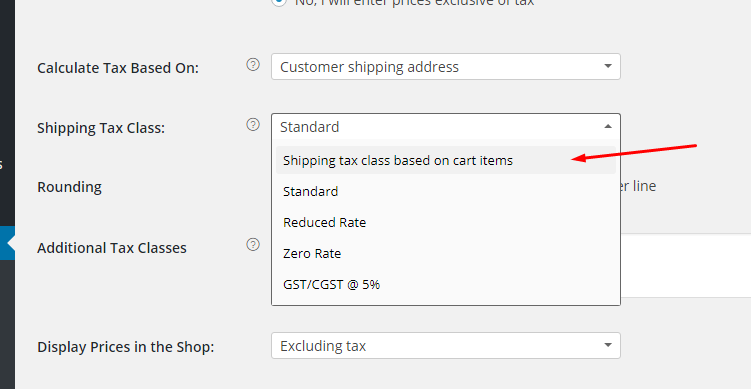
1. Select the ‘Shipping tax class based on cart items’ option here:

gst-1

2. Then, define a new tax:

gst-2

3. Configure it:

gst-3

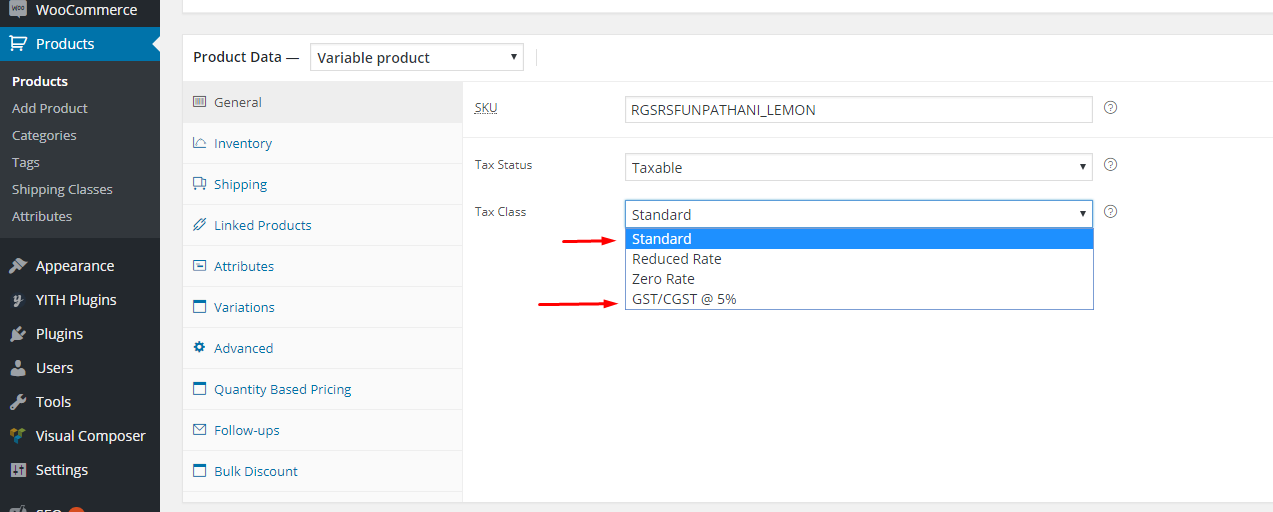
4. (If you have large no of products, go to point 5) Go to each product in your store, edit it and select the tax class:

gst-4
(if you have followed the article and done the setup for the Standard tax, select Standard for products with price > Rs. 1,000 and the new one for price < Rs. 1,000).

5. Bonus tip: Here’s how you can expedite your tax class allocation in WooCommerce. Did you know that you can assign tax classes to your products in bulk? Simply use the bulk edit feature already available in WordPress and you’ll save a lot of time. Use filters at the top of the products view as needed to sort products and also sort by ascending/descending etc. See screenshots below:

gst-woocommerce-bulk-tax-rate

gst-bulk-tax-rate-woocommerce-wordpress

Here are some screenshots from our example website:

Case 1: Selected the State in Shipping Address as Tamil Nadu; IGST should get calculated.
igst-igst-woocommerce

Case 2: Selected the State in Shipping Address as Maharashtra (this is also the base location of the store); Thus, GST (CGST+SGST) should get calculated.
gst-in-wordpress-woocommerce

P.S: Neither I am a tax expert nor a lawyer, so please consider this as a set of steps to use when you know what tax rates are applicable to the products you are selling. This article can help you configure tax, not determine how much.

Now, here is the bonus 🙂

Avalara helps you automate all your indirect taxes, including GST (CGST+SGST). Obviously, its a paid service and should be worth taking a look if your needs are likewise.
Here are some links you may find helpful in that context:

Avalara announces trustfile GST support


Header Image:
StartupChoice.com