
I stand amid the roar
Of a surf-tormented shore,
And I hold within my hand
Grains of the golden sand —
How few! yet how they creep
Through my fingers to the deep,
While I weep — while I weep!
O God! Can I not grasp
Them with a tighter clasp?
O God! can I not save
One from the pitiless wave?
Is all that we see or seem
But a dream within a dream?
by Edgar Allan Poe.

Redirect after logging in based on the user role
Not every user should be able to log in to the Dashboard, and WooCommerce already prevents this. But you may want to change it for somebody or just use a different page.
By default WooCommerce redirects the user to the My Account page after a successful login.
You can redirect after logging in and use a custom URL based on the user role, like the Dashboard for admins and My Account page for customers.
Add this code at the end of the file functions.php in wp-content/themes/your-child-theme-name/:
<?php
/**
 * Redirect users to custom URL based on their role after login
 *
 * @param string $redirect
 * @param object $user
 * @return string
 */
function wc_custom_user_redirect( $redirect, $user ) {
	// Get the first of all the roles assigned to the user
	$role = $user->roles[0];
	$dashboard = admin_url();
	$myaccount = get_permalink( wc_get_page_id( 'myaccount' ) );
	if( $role == 'administrator' ) {
		//Redirect administrators to the dashboard
		$redirect = $dashboard;
	} elseif ( $role == 'shop-manager' ) {
		//Redirect shop managers to the dashboard
		$redirect = $dashboard;
	} elseif ( $role == 'editor' ) {
		//Redirect editors to the dashboard
		$redirect = $dashboard;
	} elseif ( $role == 'author' ) {
		//Redirect authors to the dashboard
		$redirect = $dashboard;
	} elseif ( $role == 'customer' || $role == 'subscriber' ) {
		//Redirect customers and subscribers to the "My Account" page
		$redirect = $myaccount;
	} else {
		//Redirect any other role to the previous visited page or, if not available, to the home
		$redirect = wp_get_referer() ? wp_get_referer() : home_url();
	}
	return $redirect;
}
add_filter( 'woocommerce_login_redirect', 'wc_custom_user_redirect', 10, 2 );
Delete the sign <?php on first line if you are having errors come up after saving the file.
If you need to change the URL for a specific role you can use the function get_permalink() passing the page ID to return its URL:
get_permalink( 150 );
This code will return the URL to the page with ID 150.

Easily import DB using wp-cli
I have been using Vagrant VVV for development on local for a long while now; havinng moved from XAMPP and PHPmyadmin for as long as I’ve been doing this stuff, moving to Vagrant presented me with a very real fear that I wouldn’t be able to easily setup local installs of live sites. With XAMPP I had always did a find & repace using the Search and Replace DB script, after importing the DB to the the local/development servers.
It wasn’t perfect but served my needs for any db under 50MB. Sadly as I have been tasked with older installs and larger DBs that restriction has become problematic. Fortunately Vagrant once again steps in to save my butt.
This is mostly a command line process but I promise it’s pretty basic, much faster than my previous mostly manual solution, and isn’t restricted to the PHPmyadmin file size limits. These steps while specific to Vagrant make use of the WP-CLI which is not specific to Vagrant. You could probably do this with XAMPP/MAMP and can definietly do this on your server if you set it up proper.
WARNING
If you are cloning a live site make sure you update your local wp-config.php file accordingly. Just copy the settings that Vagrant setup for you with the wp install.
DB IMPORT IN VAGRANT
This assumes you installed vagrant at the default location of vagrant-local
- Rename db
Make sure that the db you will be importing is the same name as the db you will be importing into. So if your local site has a database name of EXAMPLE.sql you need to make sure that the db you will be imported also has the name of EXAMPLE.sql
- Move db
Make a copy of the db you will be importing and move it to the root directory of the site you will be importing into./vagrant-local/www/EXAMPLE/ - ssh into vagrant
cd vagrant-localvagrant ssh - cd to site
cd /srv/www/EXAMPLE
- Import db
wp db import DATABASE.sql - Search and Replace (optional)If you need to do a search and replace run the following command. It handles serialized data appropriately so you don’t bugger up your site.wp search-replace ‘http://example.com’ ‘http://example.dev’
- Celebrate 🎉
Extra: Commands that start with wp make use of the WP-CLI which comes set up with vagrant. See http://wp-cli.org for more info and available commands.Vagrant does support PHPmyadmin at vvv.dev but the upload limit is actually lower than MAMP. This limit can be changed in your PHP.ini file but I really don’t think it’s worth doing with how much easier the command line method is.
What tools do you use for your development environments? Do you have any favourites?

Getting the most of your WordPress Dashboard
Why customize the WordPress dashboard?
One of the things I really like about WordPress is the immense flexibility it offers to its users. Everything within WordPress is customizable, starting from themes, plugins, post types, taxonomies, widgets, page templates… literally everything!
What is that one screen you see regularly on WordPress, but might not have customized so far? Yes, the dashboard. I have been using WordPress since long now myself, and very rarely have I seen someone spending time changing things on the dashboard. I think that is because people care more about what readers see, rather than what they see on the dashboard.
I know there are a many admin themes out there, of course not as much as the regular themes, but there are definitely interesting options. I have tried a few admin themes myself, but I was never really impressed, as most of them generally offer just another UI. Or may be that’s just me 😛
However, the dashboard, in generally should be one of the most productive and useful screen on your site.
We will have a look at the methods to customize the WordPress admin area, how to introduce changes to it manually, and a number of plugins that also get the job done.
How to customize the WordPress dashboard?
Customize the login page
A user experience for users begins even before thy use your dashboard, right at the login page. Lets see how we can improve it.
For instance, to change the WordPress logo on the login form to use your logo instead. You can use the following code snippet for that:
<?php
function my_login_logo() { ?>
    <style type="text/css">
        #login h1 a, .login h1 a {
            background-image: url(<?php echo get_stylesheet_directory_uri(); ?>/images/login-logo.png);
            padding-bottom: 30px;
        }
    </style>
<?php }
add_action( 'login_enqueue_scripts', 'my_login_logo' );
?>
Make sure you replace the image path to match with your logo file. You can have this right into your WordPress Media library, or in a images directory within your child theme’s directory. The recommended image size to be used here is under 80×80 pixels in size.
If you wish to, you can go beyond this and customize your login page even further using custom CSS. If you plan to make CSS changes the best practice is to enqueue the custom style sheets. Here is how to can do it.
<?php
function my_login_stylesheet() {
    wp_enqueue_style( 'custom-login', get_template_directory_uri() . '/style-login.css' );
    wp_enqueue_script( 'custom-login', get_template_directory_uri() . '/style-login.js' );
}
add_action( 'login_enqueue_scripts', 'my_login_stylesheet' );
?>
Here are a few suggestions from WordPress Codex for CSS operators to customize your backend:
body.login {}
body.login div#login {}
body.login div#login h1 {}
body.login div#login h1 a {}
body.login div#login form#loginform {}
body.login div#login form#loginform p {}
body.login div#login form#loginform p label {}
body.login div#login form#loginform input {}
body.login div#login form#loginform input#user_login {}
body.login div#login form#loginform input#user_pass {}
body.login div#login form#loginform p.forgetmenot {}
body.login div#login form#loginform p.forgetmenot input#rememberme {}
body.login div#login form#loginform p.submit {}
body.login div#login form#loginform p.submit input#wp-submit {}
body.login div#login p#nav {}
body.login div#login p#nav a {}
body.login div#login p#backtoblog {}
body.login div#login p#backtoblog a {}
Do you want to go further? You can build your own login page template. Here are the instructions to do so.
Utilize the user roles
Though you can code everything yourself, WordPress offers a bunch of option built-in to make things easier. User roles in WordPress are one of those.
All the users in WordPress are assigned certain roles, according to which they have pre-defined capabilities with define what the user can and cannot do.
Obviously the administrator is the role with all the capabilities. If you are building sites for clients, you can choose to have just one administrator i.e. yourself and make other users with only the capabilities required for the client. The more options you leave open, the more chances of things going wrong, its always good practice to restrict users to only action they are expected to perform.
For instance, if the client need to write, edit and publish post but not change the theme or update plugin, an author profile is perfectly suitable for this purpose.
Obviously you can change roles for the users whenever you need to. Additionally if you find the pre-defined roles aren’t fitting your needs you can modify the user capabilities. There are several plugin to do so. User role editor is something I would recommend for customizing user roles.
De-Clutter the menu items
According to the roles, users have different menu items available for them. Sometimes you may come across a scenario where you might want to hide certain menu items.
There are two function which can help you to do it:
Here is an example to remove one of the pages from the admin menu, using the remove_menu_page( $menu_slug )
<?php
function custom_menu_page_removing() {
    remove_menu_page( $menu_slug );
}
add_action( 'admin_menu', 'custom_menu_page_removing' );
?>
With using current_user_can() function, you can go further to limit the users according to the user roles. For instace the below example show how you can hide the plugins page from the menu for any user that is not the admin:
<?php
function remove_menus(){
     if ( !current_user_can( 'manage_options' ) ) {
          remove_menu_page( 'plugins.php' );
     }
}
add_action( 'admin_menu', 'remove_menus' );
?>
You can check for slugs for the different menus in WordPress Codex. By the way, this methods just hides the menu item from the dashboard, which means the page is still accessible if the complete address is typed in the browser.
Using the Screen options
Another and often less used built-in feature for customizing the dashboard are Screen options. Screen options lets you to show/hide almost everything visible on the backend screen.
For instance, if you don’t use categories on your posts, you can simply disable them. This also work for excerpts, tags, track backs, redirections, everything else you can find on the screen options.
[wpvideo Awygo1HV]
The screen options even allow you to determine how many comments to display in the comments menu. All you need to do is find them in the upper right corner on any screen and use the check boxes to make elements appear and disappear.
The best thing: Screen options are saved on a user basis so you can customize screens for each person on your site.
Adding custom widgets to WordPress dashboard
Now that we know how we can reduce clutter from the dashboard and hide widgets, lets look into how we can create a custom widget. Here is a sample code which you can use to add custom widget to the dashboard which you can use to display any content you want:
<?php
function add_custom_dashboard_widgets() {

        wp_add_dashboard_widget(
                     'my_custom_dashboard_widget', // Widget slug.
                     'My Custom Dashboard Widget', // Title.
                     'custom_dashboard_widget_content' // Display function.
            );
    }

    add_action( 'wp_dashboard_setup', 'add_custom_dashboard_widgets' );

    /**
     * Create the function to output the contents of your Dashboard Widget.
     */

    function custom_dashboard_widget_content() {
        // Display whatever it is you want to show.
        echo "Hello there, I'm a Dashboard Widget. Edit me!";
    }
 ?>
You can change the line “Hello there, I’m a Dashboard Widget. Edit me!” to whatever you need to make your widget appear.
For instance, you can add a custom welcome message for your client with links to documentation and support etc. Users new to WordPress often get lost and don’t know what to do next, such help widgets can be used to guide them using hyperlinks to help.
For such case you can add information like this:
<?php
function custom_dashboard_widget_content() {
     echo "Hello Client, please remember to stay away from the plugins menu.</br>If you have any need of assistance, please don't hesitate to contact us under:
     <ul>
         <li>http://yourwebsite.com</li>
         <li>0-00-000-000</li>
     </ul>
     ";
    }
 ?>
You can replace the link and the phone number to match with your contact details.
You can customize this further to add your own help tabs to pages for more information:
<?php
function setup_help_tab() {

$screen = get_current_screen();

if ( 'post' == $screen->post_type ) {

get_current_screen()->add_help_tab( array(
'id' => 'post',
'title' => ( 'How to Publish a Blog Post' ),
'content' => '<strong>To publish a blog post, please follow the steps below.</strong>
<ul>
    <li>Locate big, blue <em>Publish</em> button.</li>
    <li>Click it.</li>
    <li>Well done.</li>
</ul>
',
) );
}
}
add_action( 'admin_head', 'setup_help_tab' );

?>
The example above will add the information to the Help button they can find on almost any screen.
Disable theme and plugin editor
Personally, I am not a big fan of the theme and plugin editor within the WordPress dashboard. I know a lot, who might not feel the same about it. The primary reason I don’t like it is because it leaves the ends open to users who are not very familiar with the code, and the worst part if while editing, they go wrong, the dashboard may not be accessible any more for them to undo the changes. This not only creates a panic for the users, but also leaves the developer in a difficult situation.
Not to mention the addition security risk involved with it; anyone who can access you dashboard (both legitimately and illegitimately), can make any changes to your site and possibily bring it down.
Also, since mostly you will work on edits to the theme and plugin from FTP or from a dev/staging environment, you won’t need this on the dashboard.
That being said, here is how you can disable it, by adding this to your wp-config.php:
define( 'DISALLOW_FILE_EDIT', true );
Edit the dashboard footer
Since we are talking about all the aspects of customizing the WordPress Dashboard, why not change the footer too.
It usually says “thank you for creating with WordPress”.
It is a great place to let your client know who built their site for them. Here is how you can do it, just adding this to the function.php will do the trick:
<?php
function change_admin_footer(){
     echo '<span id="footer-note">From your friends at <a href="http://www.yourdomain.com/" target="_blank">XYZ Web Studio</a>.</span>';
    }
add_filter('admin_footer_text', 'change_admin_footer');
?>
Feeling adventurous? How about making a custom dashboard page?
You can build a custom dashboard page according to your choice. You will have to build a plugin for it. It is a comparatively longer discussion and I hope to share it soon. I will update a link here when I do so.
If you are thinking about having your own WordPress backend, WP Explorer has an excellent article to get you started.
Plugin suggestions:
There are several plugin you can make use of to get these changes done. Here is a list of plugin I think can be helpful:
Dashboard themes:
I hope you find this post useful. Let me know if you know any more hacks to customize the WordPress dashboard that I might have missed. Feel free to open a discussion below in the comments.

Debugging WordPress
If you accidentally introduce a syntax or fatal error in one of your template files, you’ll probably see the dreaded white screen of death when you visit your home page. In some cases, even the admin screens will go blank. The best way to figure out what happened is to check your PHP error log. Look for the last error shown and try to correct it. However, if you can’t find your error log (or you don’t have one), you can turn on debugging by adding define('WP_DEBUG', true); to your wp-config.php file.
The problem with this method, though, is that everyone who visits the site will see your errors. Fortunately there is an alternative, which lets you enter debug mode by adding a query string to any URL.
if ( isset($_GET['debug']) && $_GET['debug'] == 'debug')

define('WP_DEBUG', true);
Then you can just add ?debug=debug to your URL (e.g. http://mysite.com/category/news/?debug=debug) to see the errors.
The white screen of death usually comes up when you update a theme or plugin. If your theme has gone horribly wrong and you just want to switch back to another one, but you can’t access the admin screens to change it, don’t panic. Simply delete or rename your active theme’s directory. When WordPress can’t find it, it will revert to the default theme. You can also deactivate an error-causing plugin by deleting or renaming its directory. WordPress will automatically deactivate it.
Adding JavaScript Libraries to WordPress
WordPress includes a number of JavaScript libraries because it uses those libraries in the administration screens. They’re available for you to use in your themes and plugins as well. The libraries include jQuery, Prototype, Scriptaculous, and SWFUpload. See the wp_enqueue_script Codex page for a complete list of the scripts available, along with their handles.
This code, added to your plugin or theme functions file, will add jQuery and its UI library:
<!--?php
//Including jQuery

function scl_add_jquery() {

wp_enqueue_script('jquery');

wp_enqueue_script('jquery-ui-core');

}

add_action('wp_head', 'scl_add_jquery');

?>
Using jQuery in WordPress is a bit tricky. Most jQuery scripts rely on a dollar sign function. For example, $("div.main").addClass("wide"); would add the wide class to a div that already had the main class. However, several other libraries, including Prototype, use this same convention. Because WordPress also uses Prototype, the jQuery library is loaded in “no conflict” mode.
You have two options. You can use ‘jQuery’ in place of the dollar sign function (‘$’) throughout your script, or you can wrap your script in an extra function.
// using jQuery without a wrapper: replace $() with jQuery()

jQuery("div.main").addClass("wide");
jQuery(document).ready(function($) {
// $() will work inside this function; otherwise use jQuery()
$("div.main").addClass("wide");
});
What libraries are you using? Let me know some intresting JavaScripts libraries you have come across.

Change the “Enter title here” placeholder text to make it fit your content
When you’re working with custom post types, sometimes the post title isn’t a title. It might be a person’s name, a building number, or a course code (just to take a few examples from universities). So it’s great that WordPress has a simple filter that makes it easy to customize the “Enter title here” placeholder text to make it fit your content:
https://gist.github.com/patilswapnilv/5cffbf8396e3d2e86b4f77a1f3f1232f
How to use this?
Place this code in your functions.php or in a plugin or even better if you can add it to a must-have plugin.

How to change WordPress admin icons
One of my favorite things about the admin theme with WordPress is the new Dashicons icon font. It brings a sense of standard and uniformity to dashboard icons with its distinctive look and vast array of icons for theme and plugin authors to choose from and use with ease.
However, it seems that not all plugin and theme authors have jumped on the Dashicons bandwagon. They insist on using their own custom image icons that do not fit in with the new design at all. This includes things such as colored icons which do not adapt to the different color schemes included with WordPress. Other authors do not set an icon for their menu or post type, resulting in many of that same thumb tack post icon or generic gear icon. This leads to a messy dashboard, which I do not like.
Fortunately, it is easier than ever to override the author’s choice for the icon with a Dashicon of your choice – all with only a few lines of CSS.
Dashicons is the icon font used officially in WordPress admin. What’s great about it is that you can add some visual cues on your website without bloating it up. Visuals like images increase load times and don’t scale well, while SVGs require you to read up a bit to actually put it to use Today we’re going to show you how you can get these font icons installed on your WordPress project.
Step 1: Enqueuing the script
To get your WordPress site ready, you’ll need to open up your child theme’s functions.php file and insert the following lines of code at the end.
add_action( 'wp_enqueue_scripts', 'load_dashicons_front_end' );

function load_dashicons_front_end() {

}
Step 2: Using dashicons
Head over to this site and pick an icon that you’d like to use. Click on ‘Copy HTML’ and use that snippet of code and paste it into your HTML, and with that, you are done! Simple isn’t it.
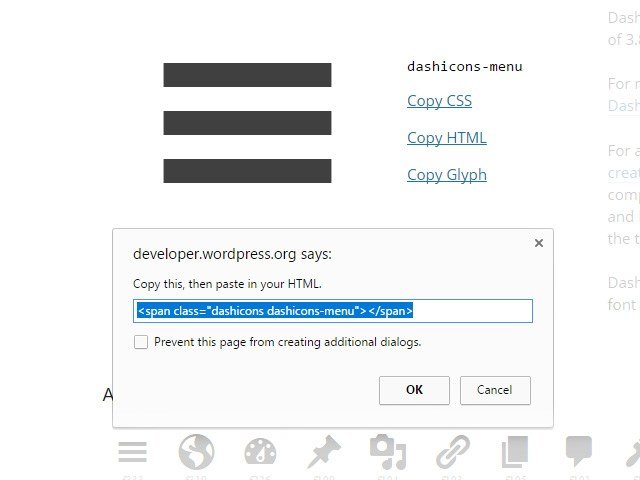
Extra Step: CSS Method
Instead of inserting it via HTML, you can also insert dashicons using CSS. Return to this site and pick an icon. This time, click ‘Copy CSS’ and insert that code into your own CSS file. Make sure to paste the code in the CSS before:selector.
Here’s a sample code of how this will look like:
.web-link:before {

font-family: "dashicons";

content: "\f319";

}
Menu icons?
Head over to the Dashicons website and pick out an icon you want. Select it and click “Copy CSS” to copy the necessary code for using that icon in CSS.
The next is to obtain the ID of that menu. To do so, use your browser’s Inspect Element tool. You’re looking for something like toplevel_page_{menu-slug} or menu-posts-{post_type}.
To add the Dashicon to the menu, use this CSS. Remember to substitute toplevel_page_{menu-slug} for the menu ID and content: '\f174'; for the Dashicon CSS code.
#adminmenu #toplevel_page_{menu-slug} div.wp-menu-image::before {
    content: '\f174';
}
If you’re just overriding another Dashicon, then the above is all that is needed. If the menu already has an image icon embedded in the HTML, you will need to add this CSS:
#adminmenu #toplevel_page_{menu-slug} div.wp-menu-image img
    display: none;
}
If the menu already has an image icon applied through CSS background images, use this CSS instead of the above:
#adminmenu #toplevel_page_{menu-slug} div.wp-menu-image {
    background: none !important;
}
You can include the CSS code in a plugin, theme’s functions.php or code snippet by wrapping it with this PHP code:
function replace_admin_menu_icons_css() {
    ?>
    <style>
        /* CSS code goes here */
    </style>
    <?php
}

add_action( 'admin_head', 'replace_admin_menu_icons_css' );
And with that, you are now on the road to using WordPress dashicons! Do you use Dashicons or do you prefer SVGs? Let us know which method you use and why down in the comments below.
पुणे तिथे काय उणे!
पुण्यात खाद्यभ्रमंती साठी काही विशेष
🍲🍛
– चांदणी चौक (बावधन) जवळचे ’टेस्टी टंग्स’ चाटसाठी चांगले आहे.
– औंधला असलेल्या ’कढाई’मध्ये रबडी जलेबी आणि पाणीपुरी चांगली मिळते.
– कर्वे नगरच्या स्पेन्सर चौकात महिन्याभरापूर्वी ’ममता डायनिंग हॉल’ सुरू झाला आहे. कमी पैशात फार चांगली थाळी मिळते इथे.
– कर्वेनगरलाच आंबेडकर चौकाजवळ ’कॅफे स्क्वेअर’ नावाचे एक छोटेसे चायनिज हॉटेल आहे.
– विमान नगरच्या दत्त मंदिर चौकाजवळ ’लझीझ’ नावाचे एक हैद्राबादी हॉटेल आहे. इथली चिकन बिर्याणी पुण्यातल्या सर्वोत्तम चिकन बिर्याणींपैकी एक आहे.
’कुबानी का मिठा’ ही स्वीट डिशसुद्धा मस्तच !
– आपटे रोडवरच्या शाहजी पराठा हाउस मध्ये पराठे अप्रतिम मिळतात. थोडे महाग आहेत. पण वर्थ व्हिजिट. साधा अँबियन्स चालणार असेल तर त्यांची मूळ शाखा लक्ष्मी रोडवर आहे. तिथे किंमती कमी आहेत. इथला चुर चुर नान, अमृतसरी नान आणि बनारसी आलू पराठा केवळ अप्रतिम. दाल लसूनी पराठीही उत्तम. लस्सी देखील सुंदर.
– कोथरुडला (पौड रोड) स्ट्यु आर्ट हे अतिशय अप्रतिम छोटेसे हॉटेल आहे. वेगवेगळ्या प्रकारचे स्ट्यु अतिशय दर्जेदार मिळतात. हंगेरियन गुलाश खास प्रसिद्ध.
– कोल्हापुरचे राजमंदिर आइसक्रीम आता पुण्यात सुरु झाले आहे. कोथरुड डीपी रोड (म्हातोबा मंदिरापासुन गणंजय सोसायटीवर जाणारा रस्ता) वर आहे. येथील रेड पेरु आइसक्रीम केवळ अप्रतिम. बाकीचीही आइसक्रीम बरी आहेत. पायना स्ट्रॉबेरी हा एक वेगळा फ्लेवरही मिळतो इथे.
– ढोले पाटील रोडवर द्रविडा’स बिस्ट्रो नव्याने सुरु झाले आहे. सिटी पॉइंट मध्ये. उत्कृष्ट दाक्षिणात्य पदार्थ मिळतात. इथली थाळी देखील सुंदर.
– रोल्स मॅनियाच्या शाखा ठिकठिकाणी आहेत. त्यांचे सगळेच रोल्स सुंदर आहेत.
– औंधला स्किप्स नावाचा कॅफे आहे. येथील ब्रेकफास्ट आणि सँडविचेस अतिशय सुंदर.
– कोथरुडला करिष्माच्या येथील खाऊ गल्लीत सिन सिटी नावाची बेकरी आहे. येथील सर्वच केक्स सुंदर. खास करुन इटालियन कसाटा, हनी अल्मंड तर लय भारी.
– कोथरुडला कोकण एक्स्प्रेसच्या गल्लीत मस्ती मिसळ आणि पौड फाट्यावर किमायाच्या पुढच्या (कोथरुड कडुन नळ स्टॉप कडे जाताना) गल्लीतली कोल्हापुरी मिसळ निरातिशय सुंदर.
– बावधनला त्रिकाया नावाचे हॉटेल आहे. अँबियन्स दर्जेदार. जेवण आवडेलच असे नाही. पण येथील लेमन कॉरियंडर सुप अतिशयच दर्जेदार.
-भांडारकर रोडवर एक फ्रेंच बेकरी आहे. नाव नीट्से आठवत नाही (ले प्स्लेजर की कायसे नाव आहे). येथील मेकरुन आणि चीझकेक खुप सुंदर.
– भाउ पाटील चौकात दिल्ली चाट दरबार सुरु झाले आहे. अस्सल दिल्ली साएड चाट आणि छोले भटुरे मिळतात.
– जोगेश्वरी मंदिर ABC चौकात सुप्रिम सँडविचेस मध्ये जवळपास १३५ प्रकारचे लज्जतदार सँडविचेस मिळतात.
– मॉडेल कॉलनीत ऑरियँटल वोक आहे. इथले बर्मीज खाउ सी जरुर ट्राय करावे.
-जे जे गार्डनचा वडापाव पुण्यात प्रसिद्ध आहेच. त्यांची एक शाखा आता नळ स्टॉप वर समुद्रच्या लायनीत, कॉटनकिंगच्या बाजुला सुरु झाली आहे.
-बाणेर भागातल्या हॉटेल्स बद्दल फार माहिती नसल्यास, तिथे ‘वे डाऊन साऊथ’ नावाचं फाईन-डाईन रेस्टॉरंट आहे. असंख्य प्रकारचे डोसे/उत्तपे. खूप छान चव, मात्र फार महाग
-बाणेर-पाषाण रस्त्यावर सॅफरन नावाचे रेस्टॉरंट आहे, सी-फूड उत्तम
-एम.जी. रोडवरील ‘मार्झो-ओ-रीन’ मधे चवदार सँडवीच मिळतात. आणि होममेड टाईप पिझ्झाज्/बर्गर ही मस्त असतात.
पुणे तिथे काय उणे 🙏
Call a navigation menu using a shortcode
Today I came across a weird situation: I needed to place a navigation menu in the content of a page. A shortcode was the obvious solution, but there doesn’t appear to be one built in for menus. I created this one very quickly:
function print_menu_shortcode($atts, $content = null) {
extract(shortcode_atts(array( 'name' => null, ), $atts));
return wp_nav_menu( array( 'menu' => $name, 'echo' => false ) );
}
add_shortcode('menu', 'print_menu_shortcode');
Place this in functions.php, then use [menu name="main-menu"] to call the menu in your content (replacing "main-menu" with your menu’s slug, of course).
You could adapt this to accept any of the other arguments available for wp_nav_menu(), but this served my purposes.