If you accidentally introduce a syntax or fatal error in one of your template files, you’ll probably see the dreaded white screen of death when you visit your home page. In some cases, even the admin screens will go blank. The best way to figure out what happened is to check your PHP error log. Look for the last error shown and try to correct it. However, if you can’t find your error log (or you don’t have one), you can turn on debugging by adding define('WP_DEBUG', true); to your wp-config.php file.
The problem with this method, though, is that everyone who visits the site will see your errors. Fortunately there is an alternative, which lets you enter debug mode by adding a query string to any URL.
if ( isset($_GET['debug']) && $_GET['debug'] == 'debug')

define('WP_DEBUG', true);
Then you can just add ?debug=debug to your URL (e.g. http://mysite.com/category/news/?debug=debug) to see the errors.
The white screen of death usually comes up when you update a theme or plugin. If your theme has gone horribly wrong and you just want to switch back to another one, but you can’t access the admin screens to change it, don’t panic. Simply delete or rename your active theme’s directory. When WordPress can’t find it, it will revert to the default theme. You can also deactivate an error-causing plugin by deleting or renaming its directory. WordPress will automatically deactivate it.
WordPress includes a number of JavaScript libraries because it uses those libraries in the administration screens. They’re available for you to use in your themes and plugins as well. The libraries include jQuery, Prototype, Scriptaculous, and SWFUpload. See the wp_enqueue_script Codex page for a complete list of the scripts available, along with their handles.
This code, added to your plugin or theme functions file, will add jQuery and its UI library:
Using jQuery in WordPress is a bit tricky. Most jQuery scripts rely on a dollar sign function. For example, $("div.main").addClass("wide"); would add the wide class to a div that already had the main class. However, several other libraries, including Prototype, use this same convention. Because WordPress also uses Prototype, the jQuery library is loaded in “no conflict” mode.
You have two options. You can use ‘jQuery’ in place of the dollar sign function (‘$’) throughout your script, or you can wrap your script in an extra function.
// using jQuery without a wrapper: replace $() with jQuery()

jQuery("div.main").addClass("wide");
jQuery(document).ready(function($) {
// $() will work inside this function; otherwise use jQuery()
$("div.main").addClass("wide");
});
What libraries are you using? Let me know some intresting JavaScripts libraries you have come across.
When you’re working with custom post types, sometimes the post title isn’t a title. It might be a person’s name, a building number, or a course code (just to take a few examples from universities). So it’s great that WordPress has a simple filter that makes it easy to customize the “Enter title here” placeholder text to make it fit your content:
One of my favorite things about the admin theme with WordPress is the new Dashicons icon font. It brings a sense of standard and uniformity to dashboard icons with its distinctive look and vast array of icons for theme and plugin authors to choose from and use with ease.
However, it seems that not all plugin and theme authors have jumped on the Dashicons bandwagon. They insist on using their own custom image icons that do not fit in with the new design at all. This includes things such as colored icons which do not adapt to the different color schemes included with WordPress. Other authors do not set an icon for their menu or post type, resulting in many of that same thumb tack post icon or generic gear icon. This leads to a messy dashboard, which I do not like.
Fortunately, it is easier than ever to override the author’s choice for the icon with a Dashicon of your choice – all with only a few lines of CSS.
Dashicons is the icon font used officially in WordPress admin. What’s great about it is that you can add some visual cues on your website without bloating it up. Visuals like images increase load times and don’t scale well, while SVGs require you to read up a bit to actually put it to use Today we’re going to show you how you can get these font icons installed on your WordPress project.
Step 1: Enqueuing the script
To get your WordPress site ready, you’ll need to open up your child theme’s functions.php file and insert the following lines of code at the end.
add_action( 'wp_enqueue_scripts', 'load_dashicons_front_end' );

function load_dashicons_front_end() {

}
Step 2: Using dashicons
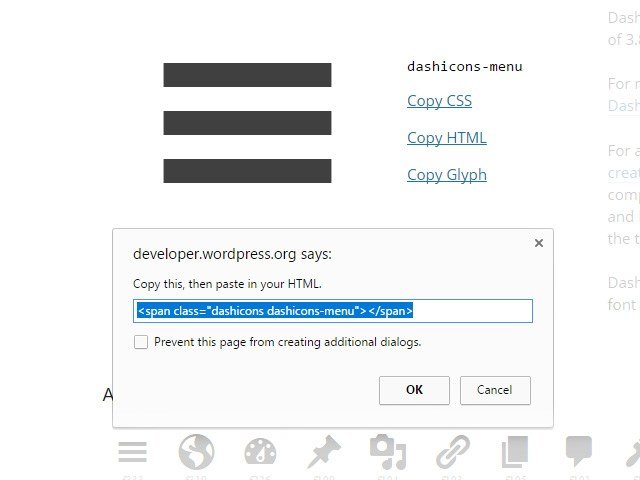
Head over to this site and pick an icon that you’d like to use. Click on ‘Copy HTML’ and use that snippet of code and paste it into your HTML, and with that, you are done! Simple isn’t it.
Copy the code and insert it into your HTML.
Extra Step: CSS Method
Instead of inserting it via HTML, you can also insert dashicons using CSS. Return to this site and pick an icon. This time, click ‘Copy CSS’ and insert that code into your own CSS file. Make sure to paste the code in the CSS before:selector.
Head over to the Dashicons website and pick out an icon you want. Select it and click “Copy CSS” to copy the necessary code for using that icon in CSS.
The next is to obtain the ID of that menu. To do so, use your browser’s Inspect Element tool. You’re looking for something like toplevel_page_{menu-slug} or menu-posts-{post_type}.
To add the Dashicon to the menu, use this CSS. Remember to substitute toplevel_page_{menu-slug} for the menu ID and content: '\f174'; for the Dashicon CSS code.
If you’re just overriding another Dashicon, then the above is all that is needed. If the menu already has an image icon embedded in the HTML, you will need to add this CSS:
You can include the CSS code in a plugin, theme’s functions.php or code snippet by wrapping it with this PHP code:
functionreplace_admin_menu_icons_css(){?><style>/* CSS code goes here */</style><?php}add_action('admin_head','replace_admin_menu_icons_css');
And with that, you are now on the road to using WordPress dashicons! Do you use Dashicons or do you prefer SVGs? Let us know which method you use and why down in the comments below.
This website uses cookies to improve your experience. We'll assume you accept this policy as long as you are using this websiteAcceptView Policy